Manage Teams and Permissions
Create organizations, invite team members, and configure role-based access
Organizations in Hostess let you collaborate with your team. You can invite members, assign roles with different permission levels, and manage access to your projects — all from the CLI or Studio.
Create an Organization
Create the organization
hostess orgs create my-team✓ Organization 'my-team' created
Slug: my-team
✓ Set as current organizationYou are automatically assigned the Owner role for organizations you create.
Switch to the organization
If you belong to multiple organizations (or have a personal account), switch to the one you want to work with:
hostess orgs switch my-team✓ Switched to organization 'My Team'All CLI commands (deploy, secrets, connect, etc.) now operate within the my-team organization context.
Invite Team Members
Send an invitation
Invite someone by email with a specific role:
hostess orgs invite alice@example.com --role developer✓ Invitation sent to alice@example.com as developer
Invitation ID: a1b2c3d4-...
Expires: 2026-06-17The invitee receives an email with a link to accept the invitation. Once accepted, they can access the organization's projects according to their assigned role.
Invite multiple members
hostess orgs invite alice@example.com --role developer
hostess orgs invite bob@example.com --role developer
hostess orgs invite carol@example.com --role viewer
hostess orgs invite dave@example.com --role owner
Roles and Permissions
Hostess uses three roles with increasing levels of access:
Viewer
Metadata-only access to projects and deployments. Viewers can see service status, metrics, and sanitized configuration, but cannot see logs, build logs, secret values, live database/Redis data, or job logs.
| Permission | Allowed |
|---|---|
| View deployments | Yes |
| View metrics | Yes |
| View sanitized project/service configuration | Yes |
| View logs and build logs | No |
| View secret values or live service data | No |
| Trigger or reset jobs | No |
| Deploy | No |
| Manage secrets | No |
| Create projects | No |
| Invite members | No |
Best for: Stakeholders, product managers, executives, and anyone who needs visibility without the ability to make changes.
Developer
Operational access. Developers can deploy, manage secrets, create and update projects/environments, view logs, connect to services, and inspect service data. They cannot manage organization membership or perform owner-only destructive administration.
| Permission | Allowed |
|---|---|
| View deployments | Yes |
| View logs and metrics | Yes |
| View project configuration | Yes |
| Deploy | Yes |
| Manage secrets | Yes |
| Create projects | Yes |
| Connect to services | Yes |
| Trigger or reset jobs | Yes |
| Invite members | No |
| Manage billing | No |
| Delete projects/environments | No |
| Delete organization | No |
Best for: Engineers, DevOps, and anyone who needs to deploy and manage services.
Owner
Full access including administrative operations. Owners can manage the organization itself — billing, membership, and settings.
| Permission | Allowed |
|---|---|
| Everything Developers can do | Yes |
| Invite and remove members | Yes |
| Change member roles | Yes |
| Manage billing | Yes |
| Delete projects | Yes |
| Delete organization | Yes |
Best for: Team leads, CTOs, and co-founders who need to manage the organization. Use sparingly.
Choosing the right role
| Team Member | Recommended Role | Why |
|---|---|---|
| CTO / Tech Lead | Owner | Needs full administrative control |
| Backend/Frontend Engineer | Developer | Needs to deploy and manage secrets |
| DevOps Engineer | Developer | Needs to deploy and manage infrastructure |
| Product Manager | Viewer | Needs visibility into deployments and status |
| Designer | Viewer | Needs to preview deployments |
| External Contractor | Developer or Viewer | Depends on scope of work |
| QA Engineer | Viewer or Developer | Use Viewer for preview/status checks; use Developer if they need logs or service data |
Manage Members
List current members
hostess orgs membersMembers of 'My Team':
EMAIL NAME ROLE JOINED
────────────────────────────────────────────────────────────────────
you@example.com You Example owner 2mo ago
alice@example.com Alice Example developer 2w ago
bob@example.com Bob Example developer 1w ago
carol@example.com Carol Example viewer 3d agoChange a member's role
Promote or demote a member (Owner permission required) in Hostess Studio: Organization Settings → Members, then change the member's role.
Remove a member
Remove someone from the organization (Owner permission required):
hostess orgs remove alice@example.comAre you sure you want to remove Alice Example (alice@example.com) from 'My Team'?
Type 'yes' to confirm: yes
✓ Removed alice@example.com from organizationThe removed member immediately loses access to all projects and resources in the organization.
Removing a member does not revoke their Personal Access Tokens. If the member had PATs for CI/CD, revoke those tokens separately in Studio under Settings > Personal Access Tokens.
Managing Organizations in Studio
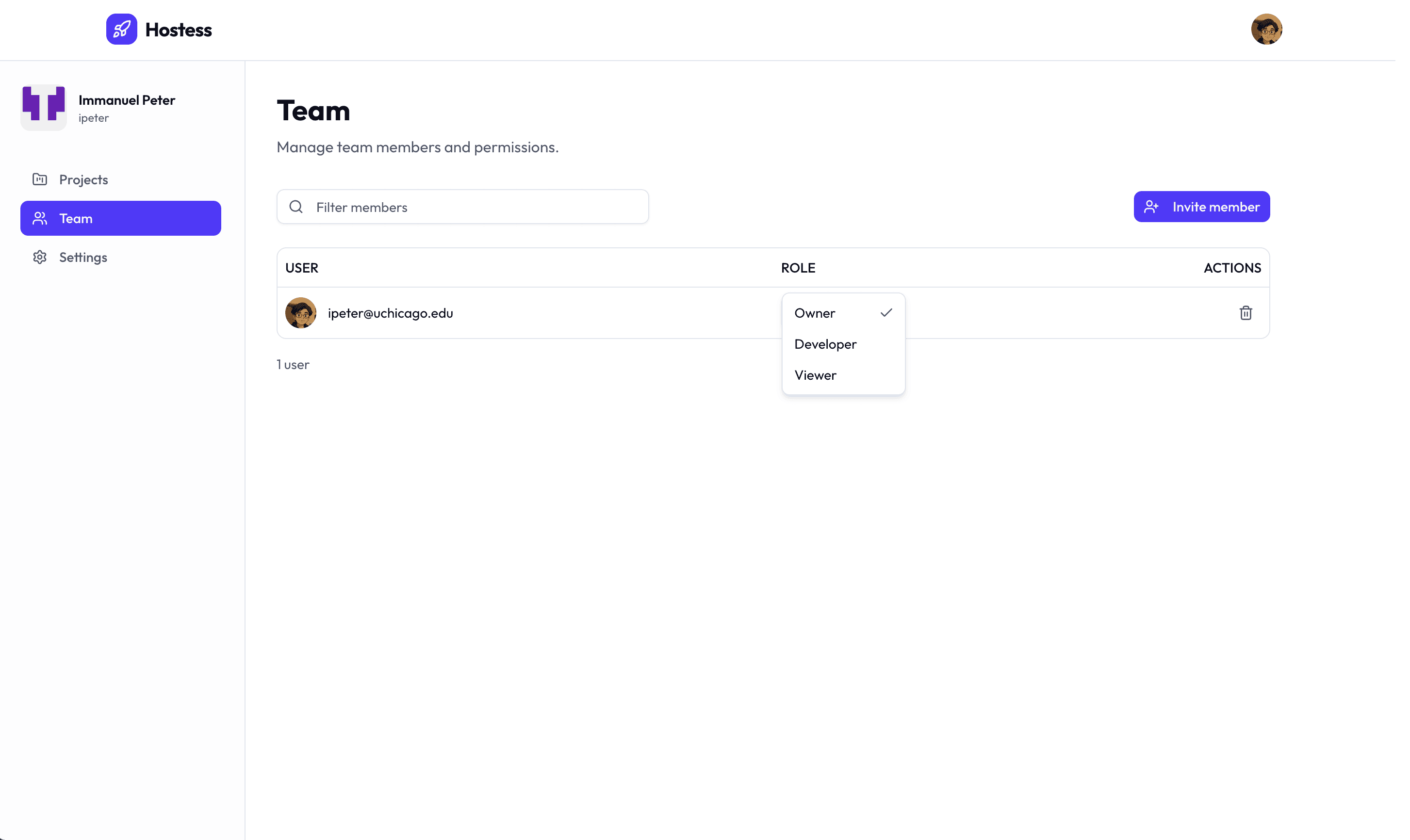
You can also manage your organization from the Hostess Studio web dashboard:
- Click your profile icon in the top-right corner
- Navigate to Organization Settings
- From here you can:
- View and manage members
- Send invitations
- Change roles
- Remove members
- Update billing information
- View organization-wide activity
Working with Multiple Organizations
If you belong to multiple organizations, switch between them using the CLI:
List your organizations
hostess orgs listNAME SLUG CURRENT
────────────────────────────────────────────
Personal Org personal ✓
My Team my-team
Client Project client-projectSwitch organizations
hostess orgs switch client-project✓ Switched to organization 'Client Project'All subsequent CLI commands operate in the context of the selected organization.
Check current organization
hostess orgs infoOrganization: Client Project
Slug: client-project
Your Role: developerBest Practices
Use the principle of least privilege
Assign the minimum role needed for each team member's responsibilities:
- Viewer for anyone who only needs to observe (stakeholders, QA, PMs)
- Developer for anyone who needs to deploy and manage services
- Owner only for people who need administrative control
Limit the number of Owners
Having too many Owners increases the risk of accidental destructive actions (deleting projects, removing members). Keep the Owner count to 2-3 trusted individuals.
Onboarding checklist for new team members
When a new engineer joins the team:
- Invite them with the Developer role:
hostess orgs invite new-dev@example.com --role developer - Have them install the Hostess CLI:
curl -fsSL https://hostess.sh/install.sh | sh - Have them sign in:
hostess login - Have them switch to the organization:
hostess orgs switch my-team - Share the project repository and
hostess.ymlconfiguration
Offboarding checklist
When a team member leaves:
- Remove them from the organization:
hostess orgs remove user@example.com - Revoke any Personal Access Tokens they created (check in Studio)
- Rotate any shared secrets they had access to
- Review deployment history for any recent changes
Use organizations for client projects
If you manage projects for multiple clients, create a separate organization for each:
hostess orgs create client-acme
hostess orgs create client-globex
This keeps projects, secrets, and access completely isolated between clients.