Service Visibility
Control who can reach each service.
Overview
Every service has a visibility setting that controls who can open its URL. Set it in hostess.yml with the visibility field.
| Visibility | HTTPS URL | Who can open it |
|---|---|---|
| public | Yes | Anyone |
| team | Yes | Organization members who can view the service, after Hostess sign-in |
| private | No | Other services in your stack (via magic variables); local access with hostess connect |
Defaults
When you omit visibility, Hostess chooses a default from the service type:
| Type | Default |
|---|---|
nextjs | public |
fastapi | private |
postgres | private |
redis | private |
custom | private |
visibility: team is always explicit — set it when you want an HTTPS URL gated by Hostess sign-in.
Configure in hostess.yml
services:
  frontend:
    type: nextjs
    build:
      source: ./frontend
    # defaults to public

  dashboard:
    type: nextjs
    build:
      source: ./dashboard
    visibility: team

  api:
    type: fastapi
    build:
      source: ./backend
    visibility: public

  database:
    type: postgres
    # defaults to private
You can also set visibility per port. Port-level settings override the service default:
services:
  minio:
    type: custom
    image: minio/minio:latest
    command: ["server", "/data", "--console-address", ":9001"]
    ports:
      - port: 9000
        visibility: public
      - port: 9001
        visibility: team
See the Configuration Reference for the full field list.
Team visibility
With visibility: team, Hostess still gives the service a stable HTTPS URL.
When someone opens that URL:
- Hostess asks them to sign in.
- After sign-in, Hostess checks that they belong to the organization that owns the project and that their role can view the service.
- Allowed members reach the app. Signed-in users who are not in the organization are denied.
Invite and manage members on the organization Team page so the right people can open team URLs.
Custom domains on team services keep the same Hostess sign-in gate. Branding the hostname does not change who is allowed in — see Custom Domains.
Studio Access
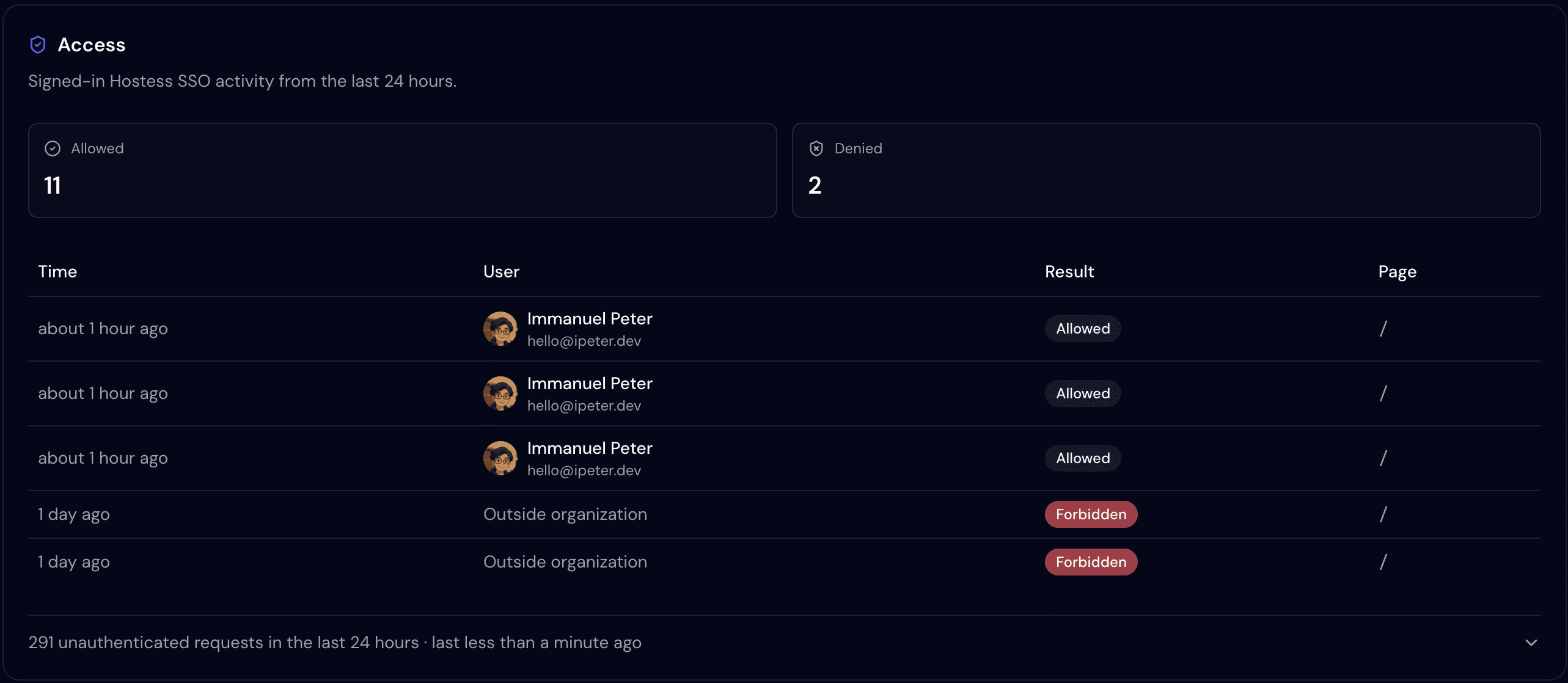
On a team service’s Overview in Studio, the Access section shows recent signed-in allowed and denied activit within the last 24 hours. Unauthenticated traffic is summarized separately in a collapsible insights section.
Use Access to confirm that the right teammates are getting in and to spot denied attempts after you change membership or roles.
Related
- URL Routing — stable URLs, deployment URLs, and magic variables
- Custom Domains — branded hostnames (sign-in still applies for team)
- Team Management — invite members and assign roles
- Configuration Reference —
visibilityfield details - Connect to Services — local access for private services